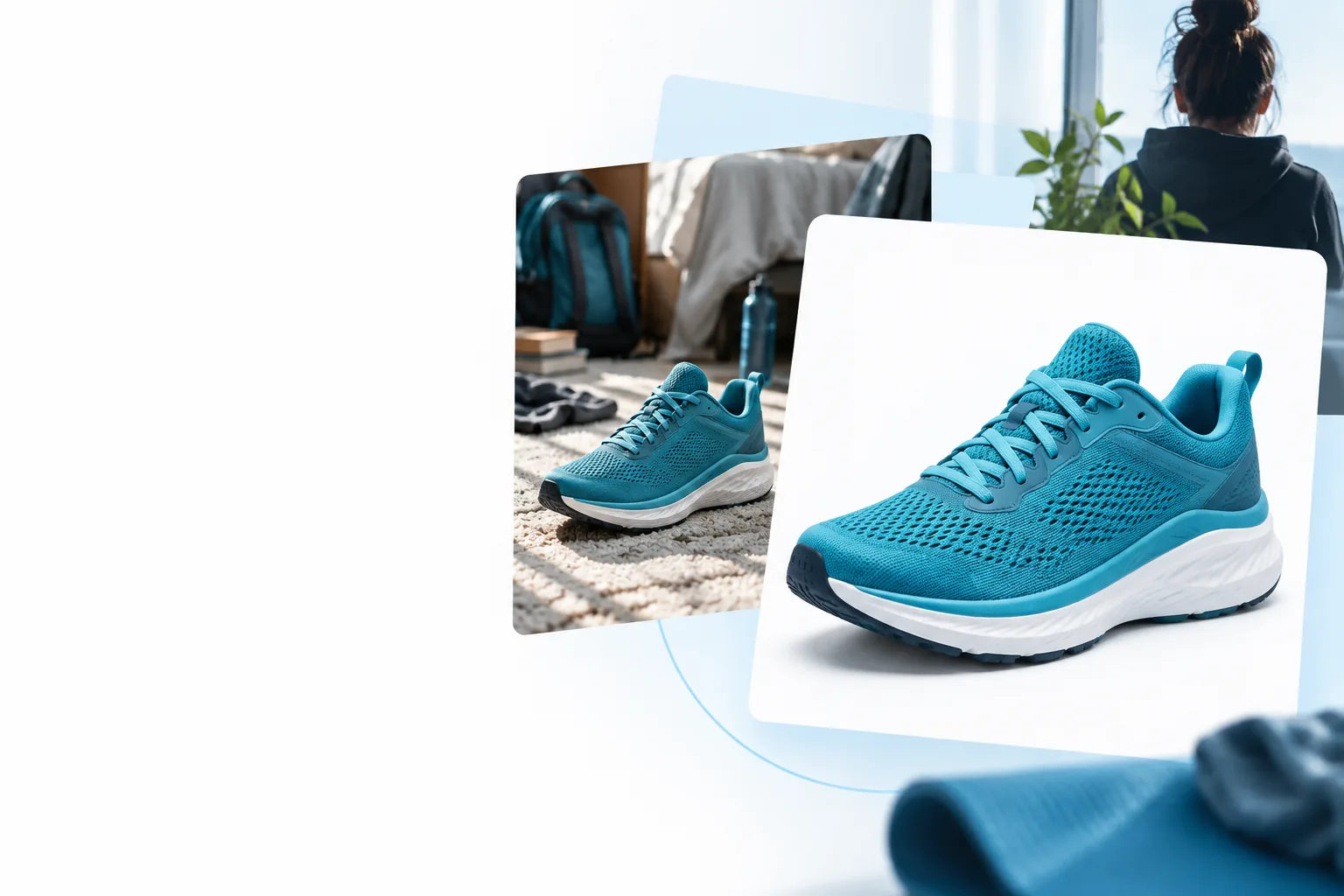
A white bg for png images means white pixels behind the subject, not an empty background. White Bg is a guide, not an editor: image upload and editing happen on Supavisual after you sign in. Its AI actions require a paid subscription.
Start by deciding whether you need to remove an existing background, fill transparency, or assess how the finished image will look.
Step-by-step: from PNG to white backdrop
The route depends on what is already in the file. A transparent cutout and a finished white-background image are different results.
1
Inspect the starting image
Open the PNG in a viewer that shows transparency as a checkerboard. If the area behind the subject is already transparent, you need a white fill rather than background removal. If a room, wall, or other scene remains, removal may be the first editing action.
2
Separate the subject if needed
After signing in to Supavisual, upload the image and use the paid background-removal action if the original scene must go. That action returns a transparent cutout, not an image with a white bg. Inspect hair, glass, shadows, and narrow gaps before continuing.
3
Place the subject against white
Use a separate paid prompt-edit action to request a white background, then review its output. Check that the backdrop is actually white and that the subject still looks natural. Save the reviewed result in a format that suits where you will use it.
Apply the workflow to your image
These starting points help you identify which change matters before you open an editor. They do not represent edits made on this page.
Product photographer
A product PNG includes a tabletop and a visible room behind it. Remove the scene first, then request white in a separate edit; watch for pale packaging edges and any shadow you want to retain.
A reviewed image with a consistent backdrop rather than a transparent product cutout.
A logo already has transparent pixels around its lettering. Background removal is unnecessary; the task is to put white behind the mark without changing its proportions or soft edges.
A version intended for white placements while preserving the original transparent file for other layouts.
A portrait needs a lighter backdrop for a mobile layout. Examine flyaway hair and light clothing after any cutout, then review how the requested white fill meets the subject.
A backdrop choice assessed at the size where the image will appear.
An illustration looks white in one viewer but sits on transparent pixels. Compare it against both white and a contrasting color before deciding whether to keep transparency or make a filled copy.
An image choice based on the page background, not the viewer's preview color.
A preview can make transparency look white. Check the actual pixels and the subject boundary before treating an image as finished.
Starting image
White-backdrop reference
These images illustrate the distinction; they are not a verified before-and-after edit. Supavisual accepts PNG, JPEG, WebP, GIF, and AVIF uploads up to 25 MB; HEIC is unsupported. Its remove-background action produces transparency, so a white result requires a separate paid prompt edit and a visual review.
Continue when you know which edit you need
Take your image to the editor
White Bg cannot upload or change your file. Supavisual handles uploads after sign-in, and its AI editing requires an active paid subscription. If you need a white backdrop, check whether the starting image is transparent or still has a scene, then review the edited output rather than assuming removal alone has filled it with white.
No. PNG can contain transparent pixels, an opaque white background, or another background entirely. A viewer may display transparent areas on white, so check the file against a contrasting color before assuming those pixels are white.
A transparent cutout needs a white layer or a separate edit that places it against white. Supavisual's background-removal action does not do that by itself; a separate paid prompt edit may create the white backdrop. Review the resulting pixels and edges before using the file.
Do not count on that workflow here. Supavisual's remove-background action returns a transparent cutout, while placing the subject against white is a separate paid prompt-edit action. The final image needs review, especially where the subject meets the new background.
No. White Bg is a static guide and cannot edit your image; the linked Supavisual editor requires sign-in and an active paid subscription for AI actions. There is no free editing tier to assume from the search phrase.
HEIC is not among Supavisual's supported upload formats. Its listed upload formats are PNG, JPEG, WebP, GIF, and AVIF, with a 25 MB file limit. Convert a HEIC file to a supported format before attempting to upload it.