PNG file owner
A subject appears on a checkerboard or against different colors in different viewers.
Check whether the file is transparent before deciding if it needs an actual white bg layer.
white bg for pngWhite Bg is a guide, not an editor. The linked editor is not free: a paid plan is required for AI editing. Image upload and editing happen on Supavisual after signing in, where you can review the result.
A white bg can mean filling transparent pixels, replacing a busy scene, or preparing a picture for a particular screen. Start with the distinction that matches your file.
A white bg is a visual goal, not a guaranteed output of a removal tool. Check these constraints before choosing an editing route.
The remove-background action produces a transparent cutout. It does not automatically replace the old scene with a white bg.
WorkaroundUse a separate prompt-edit action to request white, then inspect the resulting backdrop.
Supavisual requires sign-in and an active paid subscription for AI editing. White Bg cannot perform that action on this page.
WorkaroundIf you need a no-cost result, use an editor you already have to place a white layer behind a cutout.
Uploads support PNG, JPEG, WebP, GIF, and AVIF files up to 25 MB. HEIC is not supported.
WorkaroundConvert an unsupported source to a supported format before attempting an upload.
Hair, glass, shadows, and white objects can make the boundary or the requested white bg difficult to judge. A prompt edit has no guaranteed result.
WorkaroundReview the outline against both light and dark previews before using the image.
These are distinct stages. Treat the transparent cutout as an intermediate result, not as a finished white bg.
Confirm its format and size, then note which edges and shadows you want to preserve. Upload happens in Supavisual after signing in, not on White Bg.
With the required paid access, use background removal to produce a transparent cutout. Inspect the outline; transparency may appear white in some previews.
Use a separate paid prompt-edit action to request a white backdrop. Check the output for gray patches, missing details, or an unwanted change to the subject.
The images are illustrations of a source and a white-backdrop goal, not a verified edit performed by this page.
These are separate illustrative images, not a matched before-and-after result. Actual output depends on the uploaded file and the edit.
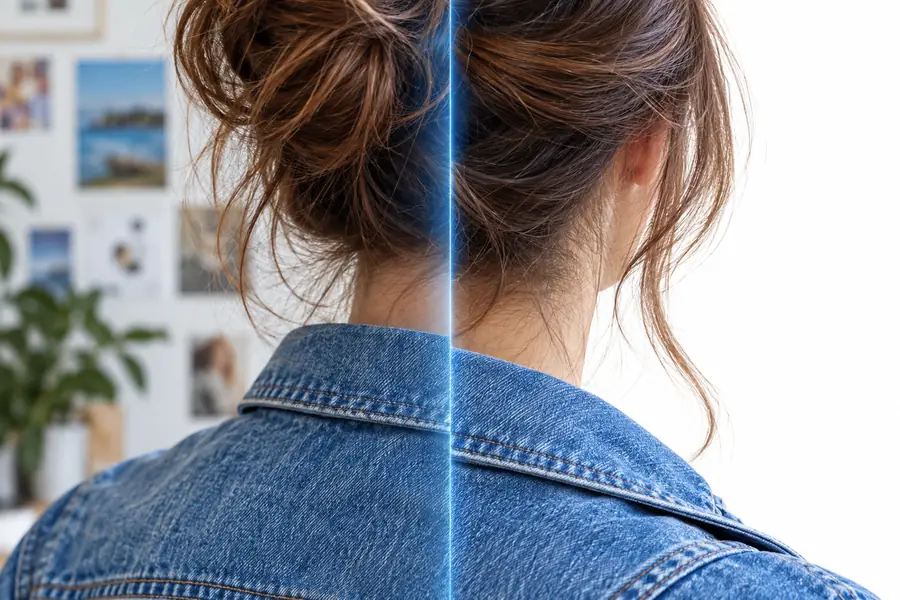
This comparison helps explain why removing a background and making a white bg are not the same operation.
Background removal
White-backdrop prompt edit
Background removal
An uploaded image with a background
White-backdrop prompt edit
An image or cutout to edit
Background removal
Separate the subject from its surroundings
White-backdrop prompt edit
Ask for a white backdrop
Background removal
Transparent cutout
White-backdrop prompt edit
A generated result to review for white
Background removal
No
White-backdrop prompt edit
No; inspect the output
Background removal
Paid AI action after sign-in
White-backdrop prompt edit
Separate paid AI action after sign-in
Background removal
Missing or rough subject edges
White-backdrop prompt edit
Backdrop color and changes to the subject
Different starting files call for different checks. These examples are workflow guidance, not promises about an editor's output.
A subject appears on a checkerboard or against different colors in different viewers.
Check whether the file is transparent before deciding if it needs an actual white bg layer.
white bg for pngA photo needs a simpler backdrop, but the creator has not chosen a workflow.
Compare the online steps before committing to a paid AI edit.
free white bg onlineThe goal is a white bg without paying for an AI action.
Consider placing a solid white layer behind a cutout in an existing editor.
white background freeWhite Bg cannot upload or edit your file. If you choose the linked editor, upload after signing in and expect a paid plan to be required for AI actions. For a white bg, review the result of a separate prompt edit rather than assuming background removal adds white.
Open image editorNo. White Bg is an informational page, and the linked Supavisual editor requires sign-in and an active paid subscription for AI editing. The search phrase describes what visitors may be looking for, not a free editing offer.
No. Background removal produces a transparent cutout, which can look white in a viewer that displays transparency over white. A separate paid prompt edit may place the subject against white; inspect the output to confirm it did.
Supavisual accepts PNG, JPEG, WebP, GIF, and AVIF uploads up to 25 MB. HEIC is unsupported, so convert a HEIC file to an accepted format before uploading.
No. White Bg provides guidance and a link; it does not receive or edit images. Uploading and editing take place on Supavisual after you sign in.